AirPlay receiver for macOS
Mirror Your iPhone to Your Mac, in a Window
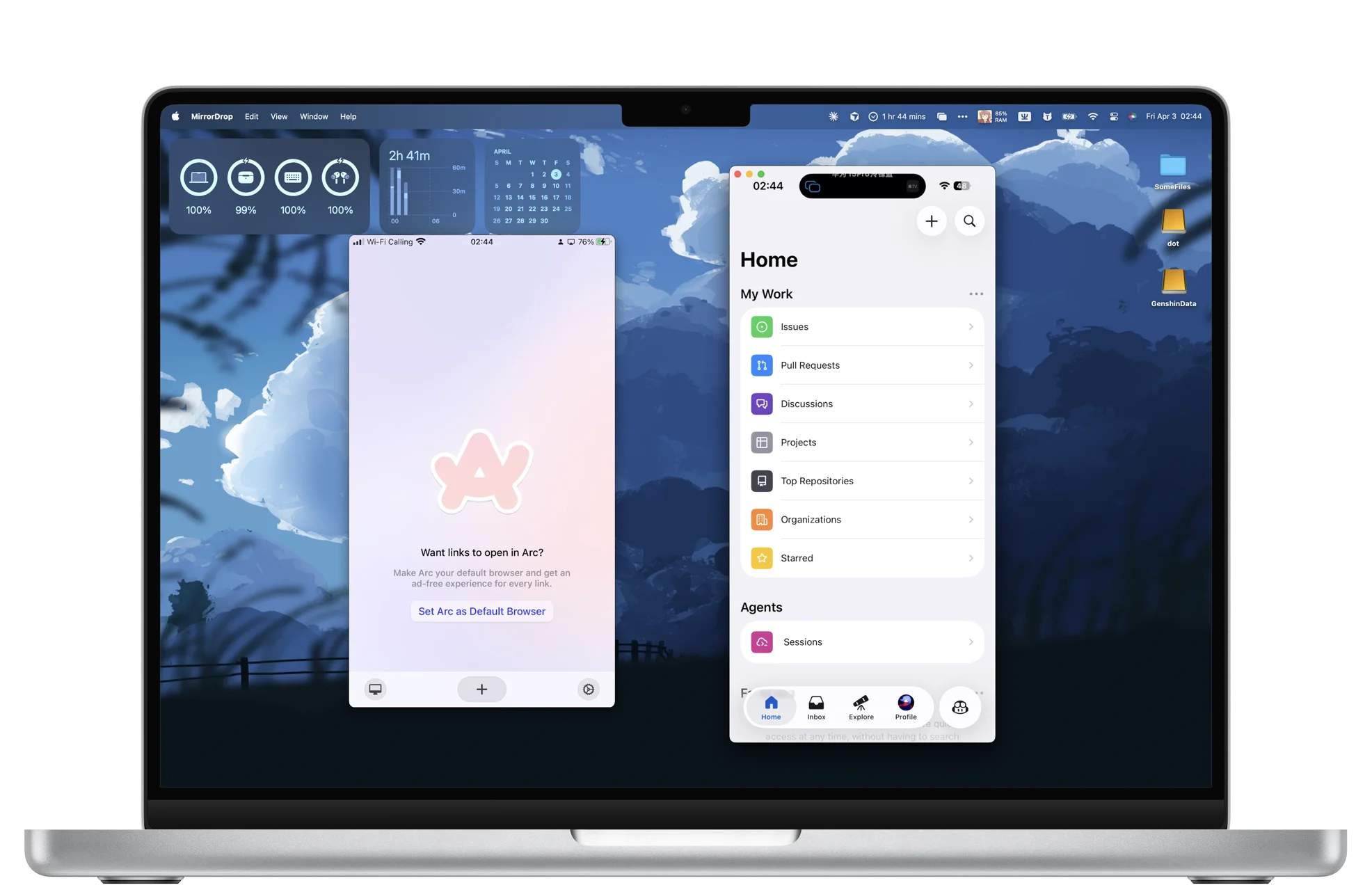
macOS has an AirPlay Receiver built in, but it fills the whole display and takes one device at a time. MirrorDrop lives in the menu bar and lets you view iPhones and iPads in separate windows or together in a video wall while you work, record or present.
Why Use MirrorDrop on a Mac
A Window, Not the Whole Screen
Resize the mirrored iPhone, move it to another display, or go full screen only when you want to.
Several Devices at Once
Compare an app on your iPhone and iPad in a single video wall. Drag either screen to rearrange the layout. The window adjusts to the combined proportions of the screens.
No Apple ID Rules
Any iPhone or iPad on your network can connect. Nobody has to sign in with your Apple ID or change the Mac's AirPlay settings.
Native and Tiny
A Swift menu bar app in a download under 5 MB, with hardware video decoding on Apple silicon.
How to Mirror iPhone to Mac
- 1
Install MirrorDrop
Open the DMG and drag MirrorDrop into your Applications folder.
- 2
Allow the first launch
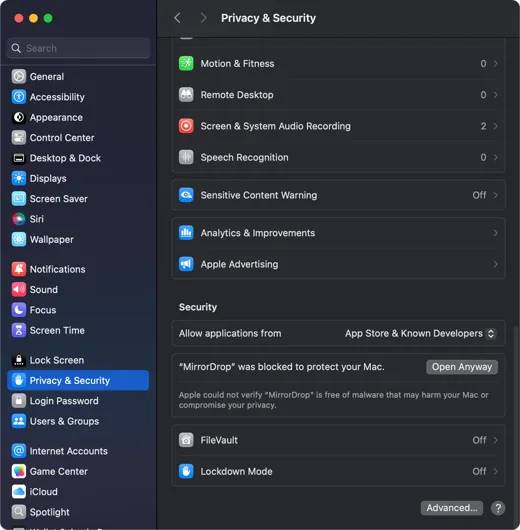
MirrorDrop isn't from the App Store, so macOS asks once. Click "Done", then open System Settings → Privacy & Security and click "Open Anyway" next to MirrorDrop.
- 3
Choose MirrorDrop on your iPhone
Open Control Center, tap Screen Mirroring and pick your MirrorDrop receiver. You can rename it in MirrorDrop's settings.
System requirements
- A Mac with Apple silicon (M1 or later)
- macOS 15 Sequoia or later
- An iPhone or iPad that supports AirPlay screen mirroring
- The Mac and the iPhone on the same local network
Simple, Honest Pricing
Free
- Screen mirroring up to 720p
- Audio streaming
- Mirror up to two devices at once
- MirrorDrop watermark
Pro
One-time purchase
- Screen mirroring up to 4K
- Audio streaming
- No preset device limit (set your own in Settings)
- No watermark
- One license for Mac, Windows and Linux
Mac Questions
Doesn't macOS already have an AirPlay Receiver?
Yes. Since macOS Monterey, supported Macs can receive AirPlay, but the built-in receiver mirrors one device and takes over the whole display. MirrorDrop can show two devices together for free, in resizable windows or in one video wall.
Do I need to turn off the Mac's built-in AirPlay Receiver?
No. MirrorDrop uses its own network ports, so both can stay on. In Screen Mirroring you'll see the Mac's built-in receiver and MirrorDrop as separate entries.
Why is AirPlay Receiver missing from my Mac's settings?
The built-in receiver lives in System Settings → General → AirDrop & Handoff, and it's only offered on Macs from around 2018 onward running macOS Monterey or later. MirrorDrop doesn't depend on that setting, but it does need an Apple silicon Mac with macOS 15 or later.
Can I mirror an iPhone that uses a different Apple ID?
Yes. MirrorDrop accepts any iPhone or iPad on the same network, whichever Apple ID it's signed in to.
Can I mirror two iPhones to one Mac at the same time?
Yes. Both iPhones can mirror to the same Mac for free. In Settings, choose Video wall under Display mode to put both screens in one window. Pro lets you connect more devices and set your own maximum.
Can I record the mirrored iPhone screen on my Mac?
Yes. The iPhone shows up in a regular window, so you can capture it with the macOS screenshot toolbar (Shift-Command-5), QuickTime Player or OBS Studio.